Does ExpressVPN drain battery life?


Like all VPNs, ExpressVPN has some impact on battery life, because your device needs to encrypt and decrypt traffic and maintain the VPN connection. How much energy is used depends on your device, your network, what you're doing online, and the VPN protocol you use.
ExpressVPN's Lightway protocol is built to keep that extra load low, and it also offers a few in-app settings that can help conserve power further. You can't avoid the extra consumption completely, but you can take steps to keep it to a minimum.
Why does a VPN use more battery?
While all apps expend battery to some degree while you use them, there are some specific reasons a VPN can drain your battery faster:
- Your device maintains a VPN connection: A VPN needs to maintain a connection to its server while it's connected. This can involve background processing and network activity, even when you're not actively browsing.
- Your device processes encrypted traffic: The VPN encrypts your outgoing data and decrypts incoming data, which requires some extra processing. Modern devices handle this efficiently, but the impact can vary depending on your device, VPN protocol, and encryption implementation.
- Your data takes an extra network hop: Your internet traffic passes through the VPN server before reaching its destination. This adds some network overhead and can increase latency, especially if you’re connecting to a distant server. Depending on network conditions and how your device handles the additional traffic, this may also contribute to battery consumption.
How to reduce battery drain while using ExpressVPN
There are several ways that you can minimize battery drain while using the ExpressVPN app. Here are the main ones.
Use the Lightway protocol
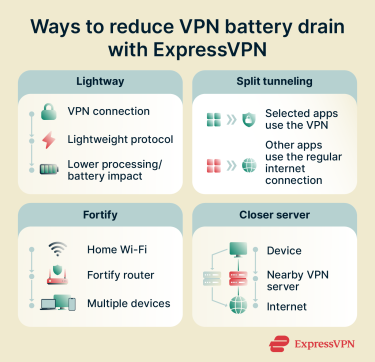
ExpressVPN designed the Lightway protocol to be lightweight, helping reduce the processing power needed to maintain a VPN connection. Unlike OpenVPN, which can consume more power, Lightway is built to minimize battery drain.
Its streamlined design also helps it connect quickly and handle network changes efficiently. When your device changes from Wi-Fi to mobile data or loses signal for a moment, Lightway pauses your VPN connection instead of ending it. It picks up again as soon as you're back online, rather than establishing an entirely new session. This helps it reconnect smoothly, although the extent to which this affects battery consumption depends on your device and network conditions.
ExpressVPN's default protocol setting, Automatic, picks the best option for your network, and that's usually Lightway. If you want to make sure you’re using Lightway at all times, you can also select it directly on your device. Here’s how to do it on the macOS ExpressVPN app:
- Open ExpressVPN and select Profile from the left panel.
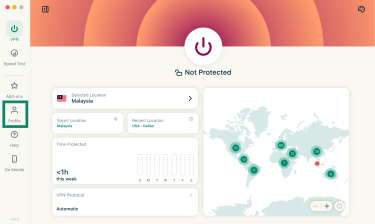
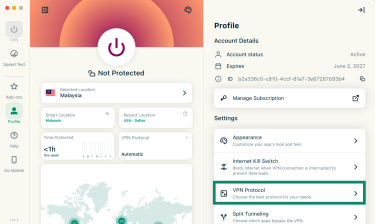
- Click VPN Protocol.
- Select Lightway – UDP.
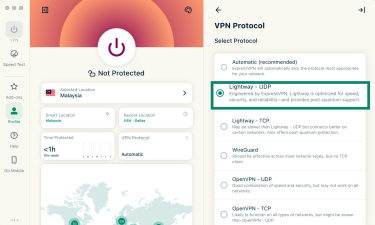
- Click Change Anyway if asked.
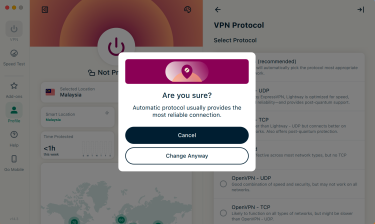
If you’re not sure which is best, start with Lightway – UDP, since it's the faster option. Try switching to Lightway – TCP if your connection keeps dropping, as it works better on certain networks.
For full instructions on changing protocols, see our guides for Mac, Android, iOS, and Windows.
Check your NAT heartbeats setting on mobile
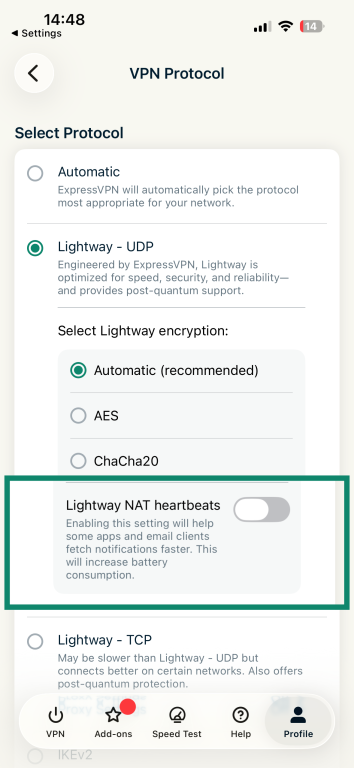
The Lightway protocol’s NAT heartbeats setting on the mobile apps sends small packets at regular intervals to keep the VPN tunnel active, which can help prevent delays with push notifications but also increases battery consumption.
If you're experiencing more battery drain than usual while using ExpressVPN on your phone, it’s worth checking whether NAT heartbeats are enabled. Note that they’re disabled by default, so you only need to change this setting if you've enabled it previously and no longer need the functionality it offers. To do this:
- Go to your Profile settings and select VPN Protocol.
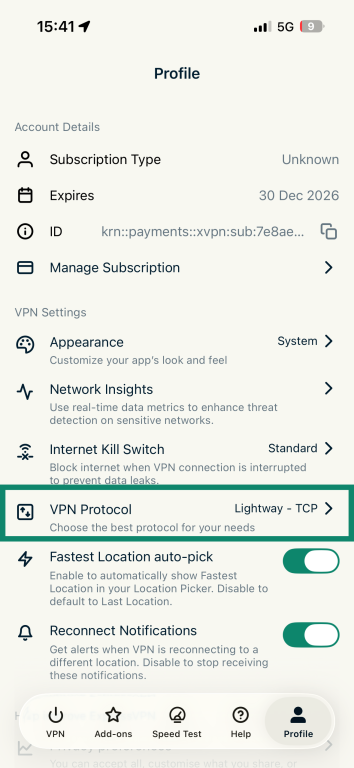
- If you’re using Lightway, you’ll see that protocol selected. Here, you can check Lightway NAT heartbeats is toggled off.
Use split tunneling
Split tunneling lets you choose which apps and IP addresses use the VPN or bypass it. Excluding an app that transfers a lot of data may reduce the amount of traffic ExpressVPN needs to process, potentially helping conserve battery power. However, the actual difference will depend on your device and usage.
Apps and traffic you exclude use your regular connection, so they don't benefit from VPN encryption. We only recommend excluding apps where that trade-off makes sense to you.
Follow these steps to enable split tunneling:
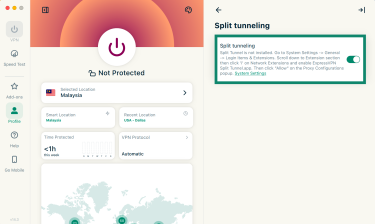
- Open ExpressVPN, click the Profile tab, then choose Split Tunneling.
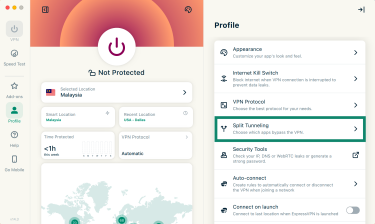
- Turn on the toggle. Note that the first time you do this on Mac, your device may ask you to allow ExpressVPN's network extension. Follow the prompts in System Settings to turn it on.
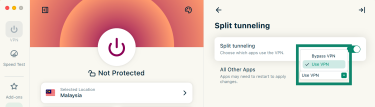
- Select the appropriate option from the dropdown menu to choose whether apps use or bypass the VPN by default.
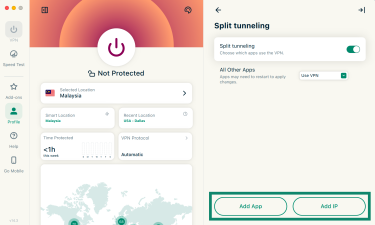
- Click Add App to choose the apps you want to exclude (or include) or Add IP to select IP addresses to exclude (or include).
For more information on split tunneling and full instructions for different operating systems, see our desktop, Android, and iOS guides.
Note that on iOS, you can only exclude IP addresses, which doesn't always work reliably for large websites as they spread their traffic across many servers, often in different places, and those addresses can change at any time. That makes split tunneling less useful for saving battery on an iPhone.
Use the Fortify router at home
When you run the ExpressVPN app on multiple devices individually, each device handles the VPN connection and the associated processing. The Fortify GL-MT6000 router has ExpressVPN functionality built in, meaning that you can protect every device on your home Wi-Fi network via the router. This shifts VPN connection management and encryption to the router, reducing the work your devices have to do to maintain their own VPN connections and potentially saving battery power.
Fortify supports up to 86 connected devices, including smart home appliances and other devices that can't run a VPN directly. It also comes with 12 months of the ExpressVPN Advanced tier subscription for new and returning customers who don't have an active ExpressVPN subscription. Check out the Fortify setup guide for more information and detailed setup instructions.
Switch to a closer server
When you use a VPN, your data travels to the VPN server before it reaches the website or app you're using. A distant or slow server can increase latency and prolong data transfers, potentially increasing battery consumption.
By default, ExpressVPN recommends an optimal server for your location and network conditions. On desktop, the feature is called Smart Location, while on mobile, it's Fastest Location. If you've manually selected a server, you can return to the recommended location at any time.
To switch back to the optimal server on the desktop app, simply click the Smart Location toggle.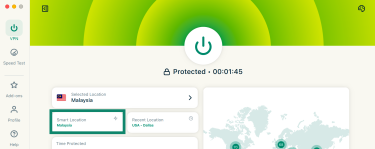
For full device-specific instructions on changing servers, see our guide: How to change VPN locations on the ExpressVPN app.
Keep your ExpressVPN app updated
Keeping your apps updated helps protect against known security vulnerabilities, as well as fixing bugs and improving performance. Updating the ExpressVPN app may also potentially fix software inefficiencies that could contribute to battery drain, although this depends on the changes included in each release.
The easiest way to stay up to date is to turn on automatic updates, so new versions install without you having to check. On Mac, open ExpressVPN and click the Profile tab. Under Settings, scroll down to Enable Auto-update and make sure it's toggled on.
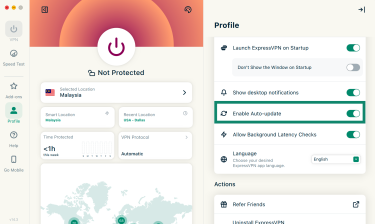
For full device-specific instructions, see our guide to updating your ExpressVPN apps.
Other tips to minimize battery drain
In addition to the tips above, these general battery-saving measures may help your device last longer while using ExpressVPN:
- Use Wi-Fi when you can: Mobile data connections generally consume more battery than Wi-Fi, particularly when cellular reception is weak. Both connection types use less energy when the signal is strong, so connecting to reliable Wi-Fi may help reduce overall battery drain.
- Limit unnecessary background activity: Close apps you're not using and turn off background refresh for apps that don't need it.
- Check your battery health: Most phone batteries hold less charge as they get older, so consider replacing your battery if its capacity has significantly deteriorated or your device recommends servicing.
- Consider a newer device: Newer phones often have more power-efficient processors and components, which can reduce the battery impact of running apps in the background, including ExpressVPN.
- Turn the VPN off temporarily if necessary: If your battery is running critically low, disconnecting ExpressVPN removes its additional processing and connection overhead. However, this means your internet traffic will no longer be protected by the VPN, so you should reconnect as soon as you can.
What else affects your battery when using ExpressVPN?
There are a few factors that can affect your battery usage regardless of your ExpressVPN settings. These include:
- Signal strength: A weak cellular signal can increase power consumption as your device works to maintain a reliable connection.
- Switching networks: Moving between Wi-Fi and mobile data can involve extra network activity as your device reconnects and VPN traffic resumes over the new connection. Lightway is designed to handle these changes efficiently.
- What you're doing: Streaming, gaming, and video calls can use more battery because they keep the screen, processor, and network active. The impact depends on your device and how you use it.
- Network congestion: Crowded networks or slow connections can delay data transfers and sometimes increase energy consumption. However, the effect varies depending on your device and network conditions.
Choose a VPN with a battery-friendly protocol
ExpressVPN's Lightway protocol is built to use less power, processing, and data, so staying protected costs your battery less.
Try it risk-free with a 30-day money-back guarantee for new users.
FAQ
Does battery saver mode affect ExpressVPN?
Battery saver mode can restrict background activity, which may affect how your ExpressVPN connection operates on some phones. The Lightway protocol is designed to use less processing power and battery, which can reduce the VPN's contribution to overall battery drain and therefore potentially reduce the need for battery saver mode, but it doesn't prevent your phone's battery saver from restricting the VPN. If battery saver mode is interrupting your VPN connection, check your phone's battery settings and consider adjusting them if necessary.
Should I keep ExpressVPN connected all the time?
Keeping ExpressVPN connected helps ensure your internet traffic is protected by the VPN whenever you go online. When you disconnect, your traffic no longer passes through the encrypted VPN tunnel, and your public IP address is no longer masked by the VPN server. Lightway keeps the extra battery use to a minimum, especially on Wi-Fi. At home, a Fortify router offers a way to maintain VPN protection without running the app on individual devices.
Are VPNs bad for your phone?
No, VPNs themselves are not bad for your phone. In fact, they provide a valuable layer of security and privacy for your online activities. However, running a VPN can add to battery consumption and may increase mobile data usage slightly because of protocol overhead. ExpressVPN's Lightway protocol is designed to minimize processing and connection overhead, but the actual impact depends on your device and how you use it.